Nostrautica: Participant Guide
Someone invited you to an event that runs on Nostrautica. Here's the deal: you record a short video introducing yourself, and before the event starts the app tells you exactly who there is worth meeting, and why. No more hoping you bump into the right person at the coffee machine.
Five minutes of setup, all on your phone.
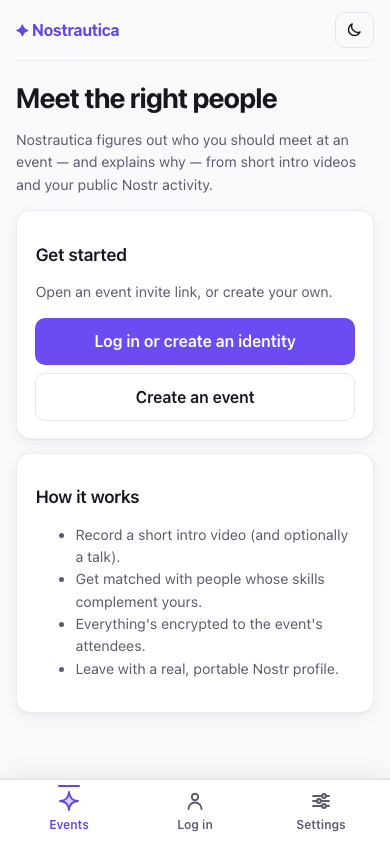
1. Open your invite link
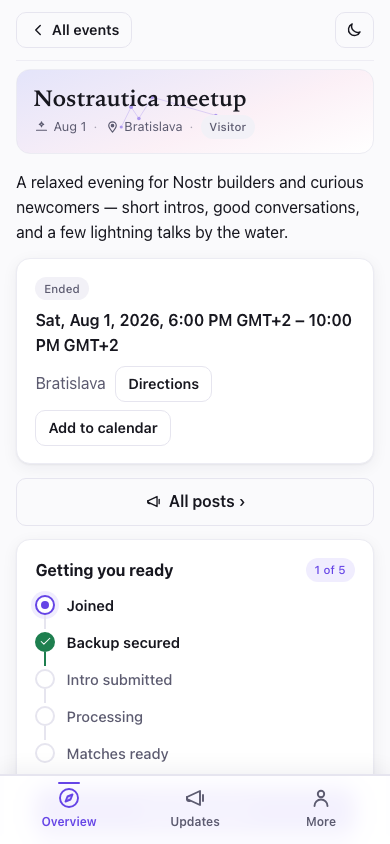
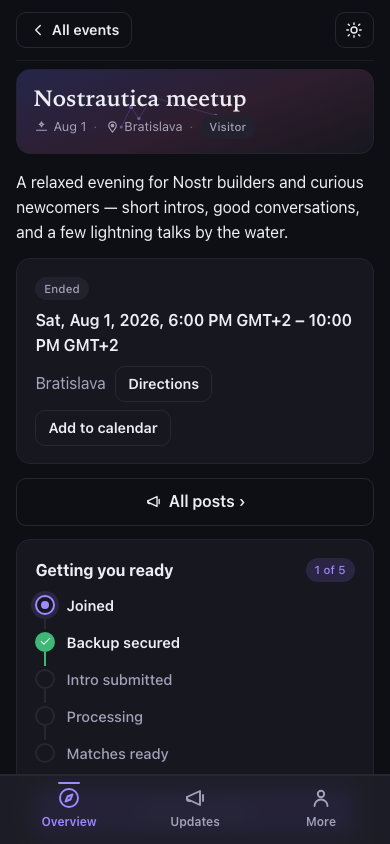
Tap the link you were given. You'll see the event's Overview (what it is, when, where) and a button to join. If the organizer has posted any announcements, the latest show up here too.
Once you're in an event, the bar along the bottom is all about this event: Overview (where you are now), People, Updates, and More (your account, settings, other events) are always in the bar. Two more appear when the organizer turns them on: Talks (§4.5) and Chat (§5.5). Talks sits between Overview and People when the organizer set talks up to be watched before the event ("prerecord-first"), and just after People otherwise. Chat comes after People, or after Talks when both are on. If you don't see either, this event simply doesn't use them. A small header at the top always tells you which event you're in and whether you're a visitor, waiting, or in.
If you installed Nostrautica to your home screen
An installed app is its own browser. A link you tap in a chat app opens in Safari or Chrome, which knows nothing about the identity you set up inside the app — different session, no events — so the invite arrives in the one place it can't be used, and it looks like the organizer's link is broken.
Copy the link instead, open Nostrautica from your home screen, and paste it
into Add an event from a link on the events screen. It opens exactly as
tapping it would have, invite code and all. A bare naddr1… address works too,
and so does a link to a standing community rather than a dated event.
2. Join
Tap Join this event and fill in how people should know you:
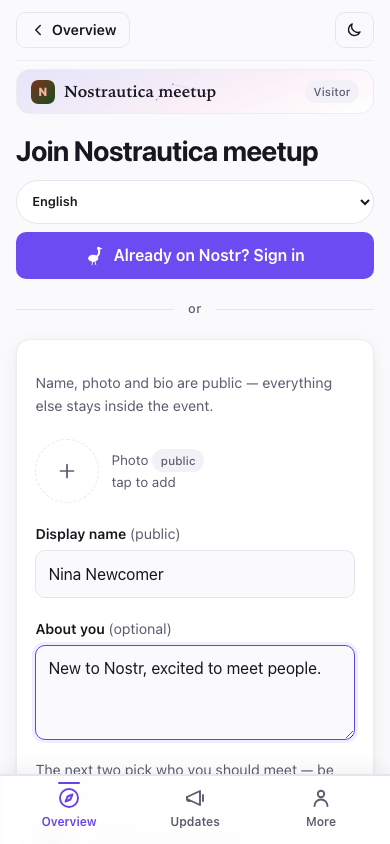
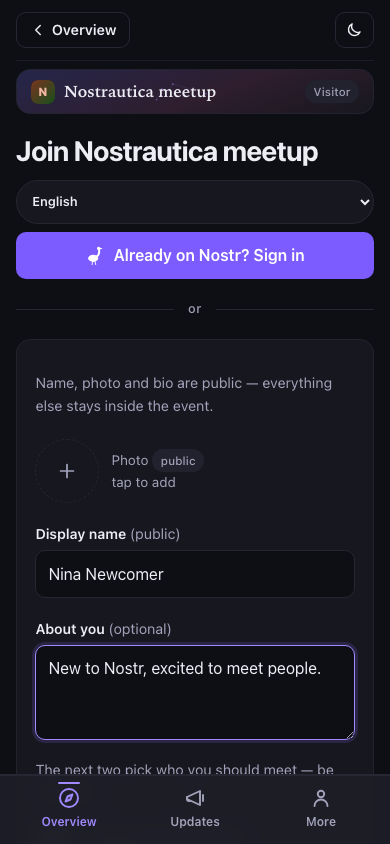
- Photo, name, and "About you": this is your public profile, like any social app. The form says as much: name, photo and bio are public, and everything else stays inside the event.
- Skills and What are you looking for?: this is what the matching runs on. Be concrete: "rust developer, looking for a co-founder" beats "tech enthusiast". It's worth the extra minute. Skip both, and the bio too, and you can still join. The form just flags, gently, that there's nothing yet for matching to work with.
- There's a checkbox to publish a public RSVP if you want others to see you're attending. Leave it off to keep your attendance inside the event.
No email, no password, no signup. When you tap Create identity & join, the app makes a portable identity for you on the spot (more on that at the end: it's a nice bonus).
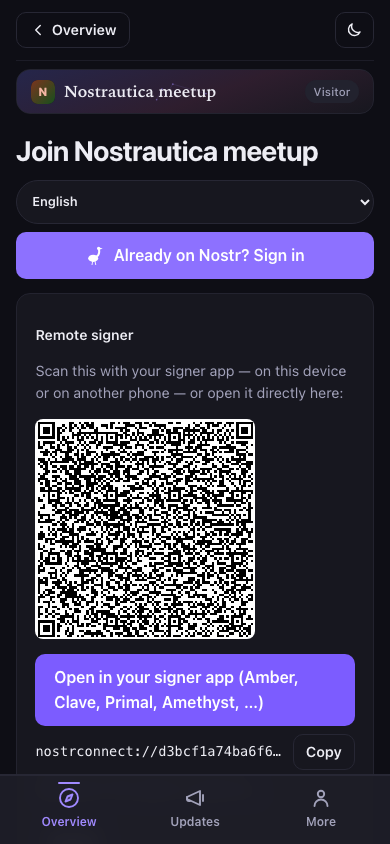
Already use one of these? If you tap Already on Nostr? Sign in, you can sign in with your existing key, a browser extension, or a phone signer app (like Amber or Clave) instead. Your existing profile carries over and is shown read-only. The app never changes it.
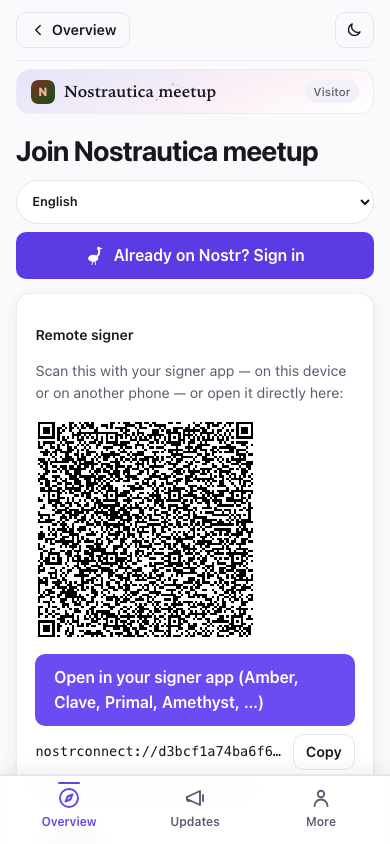
If your Nostr profile already has a bio, it's used as-is here. If it doesn't, the join form gives you an "About you" box of your own: text for this event only, never written back to your Nostr profile. Either way, skills and looking-for are always yours to fill in fresh; they're specific to this event.
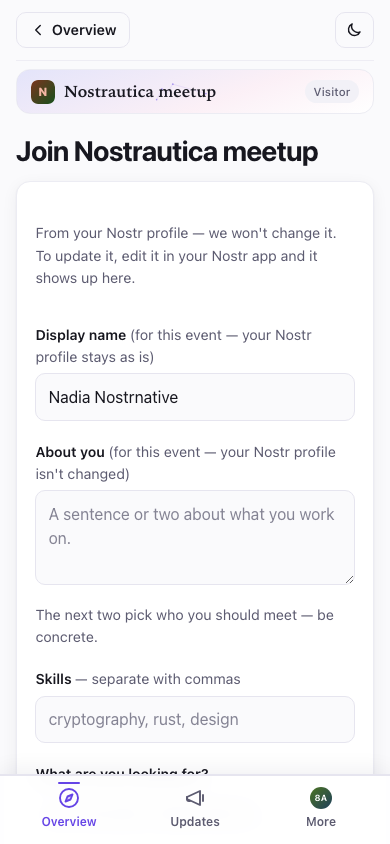
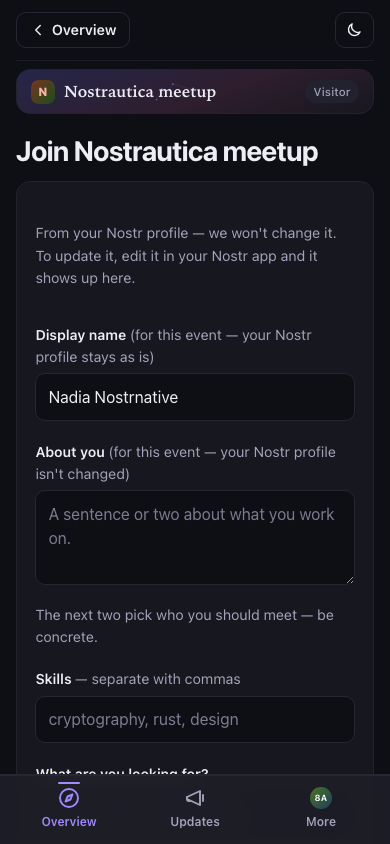
If the organizer set a limit on how long the event keeps your data, you'll see a line saying so right on the join form, something like "This event's data is deleted 90 days after it ends." That's the organizer's own cleanup setting, not something you configure; it's just disclosed up front so you know what you're agreeing to.
After you submit, one of two things happens depending on your link:
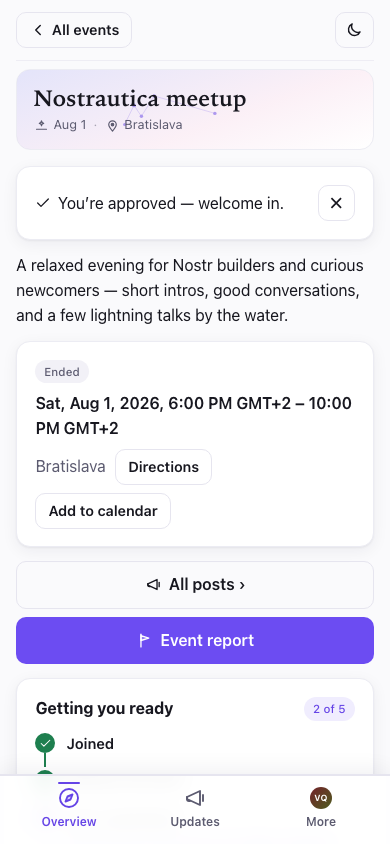
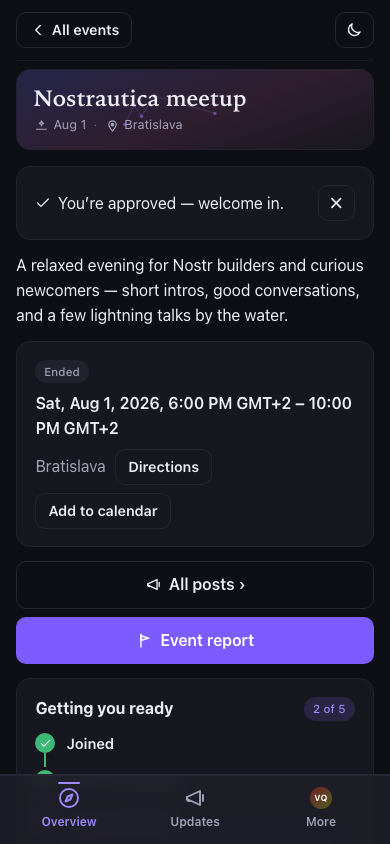
You're in right away (invite links, when the organizer's matchmaking service is running). You'll see a "You're in" screen with a button to see who's here:
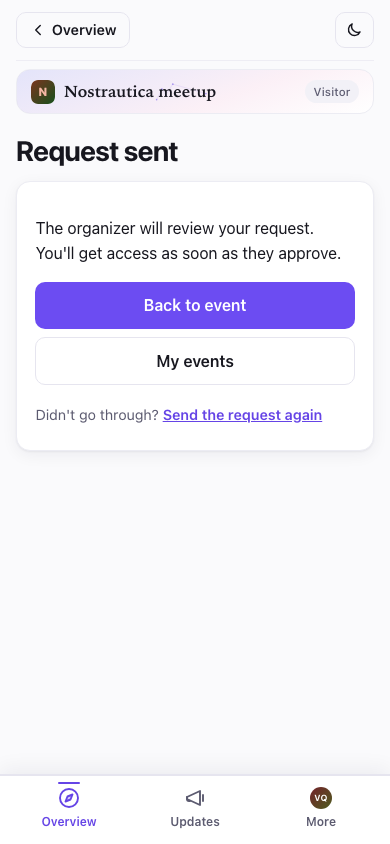
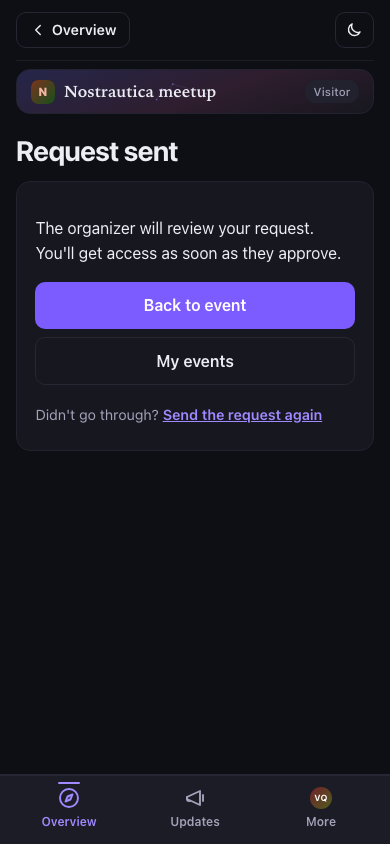
The organizer approves you shortly: you'll see a "waiting for approval" screen. You can close the app; you'll get in as soon as they approve.
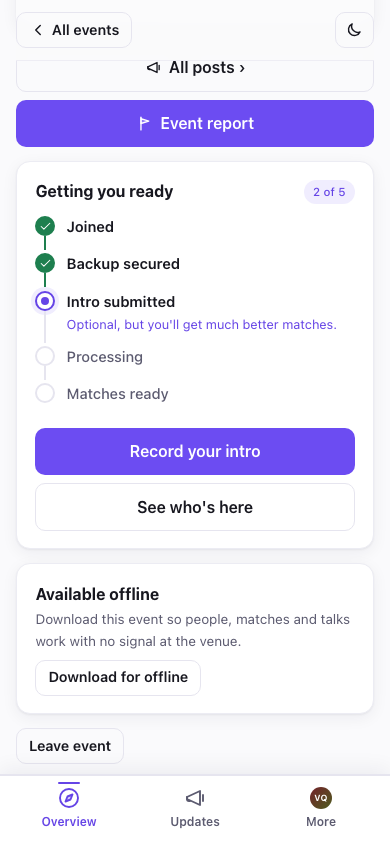
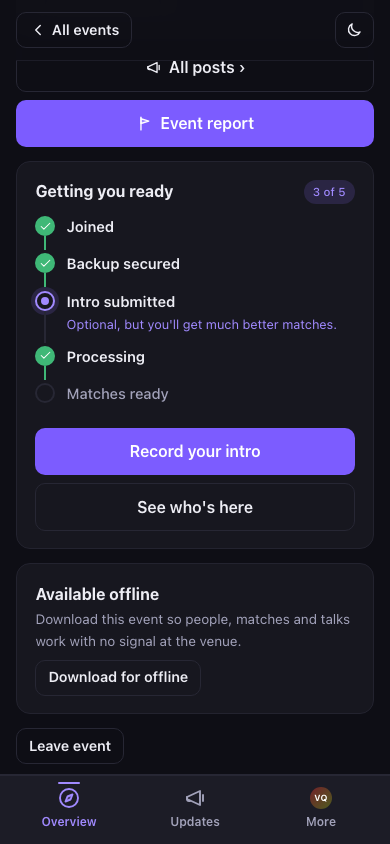
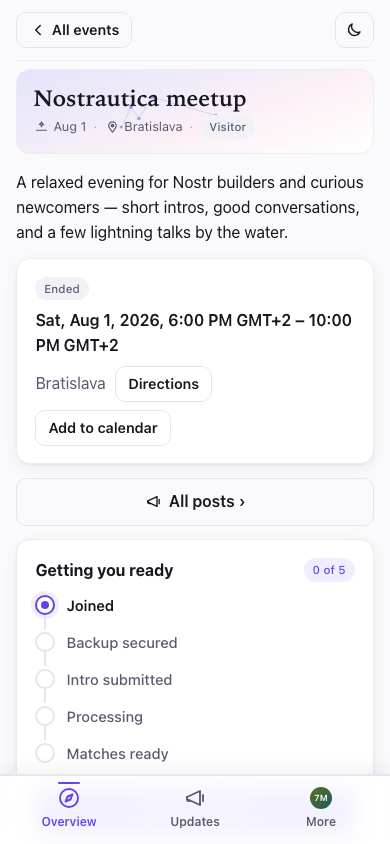
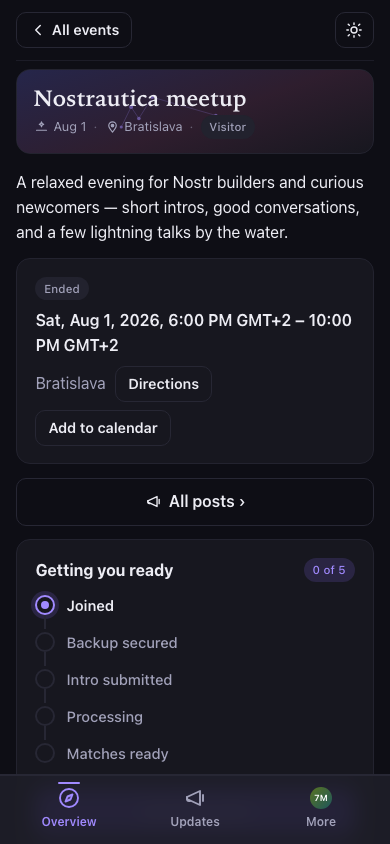
Back on Overview, a short "Getting you ready" checklist tracks exactly where you are (Joined → Backup secured → Intro submitted → Processing → Matches ready) and shows you the one next thing to do, front and center. No guessing why matches haven't appeared yet: the list tells you.
If the event belongs to a community
Some events are one meetup in a series, such as a monthly Bitcoin meetup. On those, the Join form adds a line under your profile: Joining also makes you a member of "…", and a checkbox, Also join the community "…". It is on by default. Below it, the form says who sees what: the community's organizers see your name and profile and that you joined this event. You can leave the community later.
- Leave the box on and, once you are approved for the event, the app sends the community a request for you. It is approved without anyone reviewing it again, so you are in the community too.
- Turn it off and you join only the event.
- Changed your mind later? On the event's Overview, a card says You can join "…" too. Tap Join to send the request, or Not now to dismiss it. You will also see this card if you joined the event before the organizer linked it to a community.
Your community membership stays when the meetup is over, and it carries over to the next one: you do not join the community again for each meetup. The event and the community each have their own People list, matches and group chat, so the people you meet at one meetup are not mixed into another event's list. You can also be in a community without ever joining one of its events, if you got a direct invite to it.
Works with bad venue Wi-Fi too
Further down the same Overview page, once you're approved, there's a Download for offline card. Tap it and the app pre-fetches people, matches, and talks and loads the screens that show them (People, Talks, a talk's page, Record, My profile, Updates) so they're all browsable even with no signal, handy in a packed room where everyone's phone is fighting over the same weak connection. Earlier versions fetched the data but could still fail to open a screen like Talks offline; now the screens come down with it. It still doesn't pre-download the videos and audio themselves (just everything else), and you can tap Update offline copy any time to refresh it. If a piece couldn't be fetched, the card says so rather than pretending it's complete.
Save your key (30 seconds, actually do it)
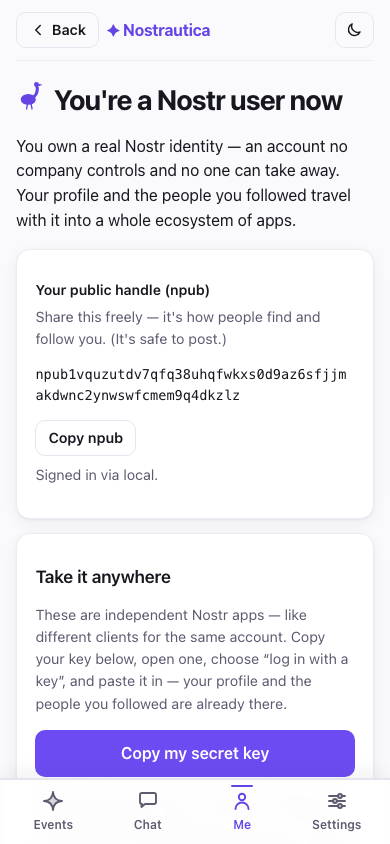
After joining, the app shows a backup card with your secret key. Tap Copy my secret key and paste it into your password manager. It's the only way back into your account if you lose your phone. There's no "forgot password" email, because there's no company holding your account. ("More ways to back up" can email you a recovery link or make a password-protected file.)
3. Record your intro
This is the part that makes the matching good. It is optional: without one you are still matched, from your public Nostr activity and profile bio, but an intro gives the matching far more to work with. From the event page, tap Record / update your intro. You get three ways to introduce yourself. Pick whichever suits you:
Why bother? Recording an intro is optional, but recommended. It gives the matching more to work with, so you get better matches. Other attendees can play it back and get a feel for whether you'd actually click. Matching isn't only projects and skills, it's also a feeling that AI can't capture on its own. And if you record video, people will actually recognize you from it when they spot you in the crowd.
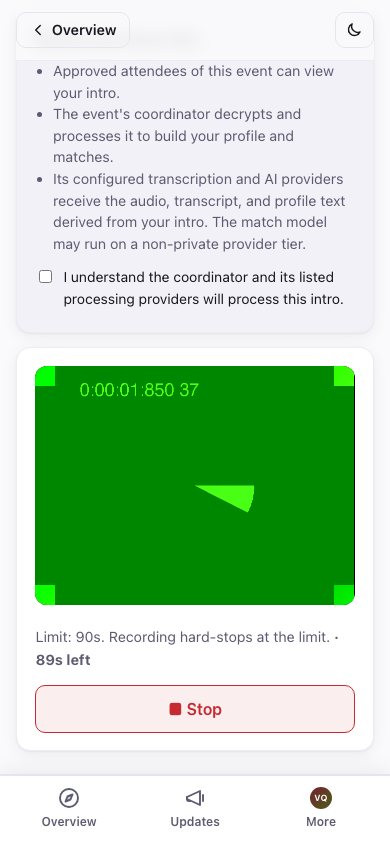
- Video (the default): tap Enable camera, then ● Record. Talk for up to a minute: who you are, what you're working on, what you're looking for. Hit ■ Stop (it also stops itself at the time limit), watch it back, and tap Use this, or Re-record until you're happy.
- Audio: same idea, no camera. Tap Enable microphone, watch the level meter to confirm it's picking you up, then ● Record audio.
- Text: no recording at all. Type a few sentences about who you are and what you're looking for; it feeds your matches exactly like a spoken intro, and (unlike video/audio) nothing is ever transcribed: the text you wrote is the only thing that leaves your device.
Before anything uploads, the app tells you plainly who processes it: the event's attendees, the organizer's matchmaking service if there is one, and which AI providers see the audio/transcript (or just the text, for text intros). You have to tick a box confirming you've read that. Nobody outside this event's attendees can ever see the intro itself.
The app updates itself automatically in the background, but never at a moment that would cost you work. It waits until you've submitted or discarded before it reloads, so an update can't land mid-recording and lose a take. (See Troubleshooting if you're wondering why an update seems to be waiting.)
Already recorded one for a different event? If you have, this screen shows a reuse gallery above the recorder: every video, audio, or text intro you've made at any past event, each with a quick preview so you can tell them apart. Reuse a video or audio clip as-is, or Fresh copy to re-encrypt it for this event without re-recording; for text, Use this text drops it into the composer so you can send it as-is or tweak it first. The local library does not store or show the source event, and if you'd rather this event's copy not be linkable back to that one, Fresh copy takes care of it (Troubleshooting has the mechanism, if you're curious).
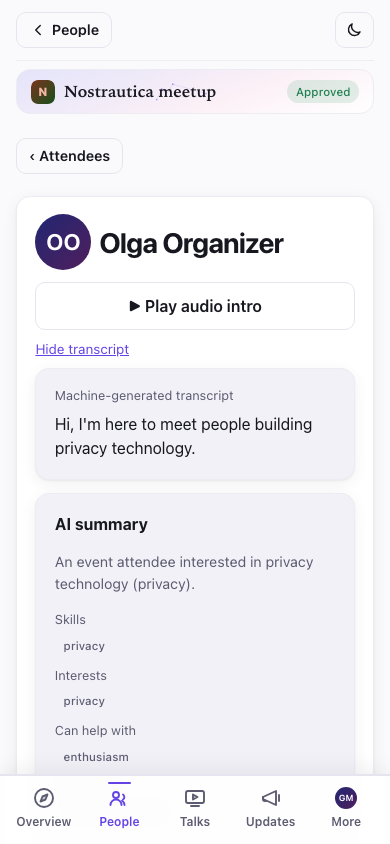
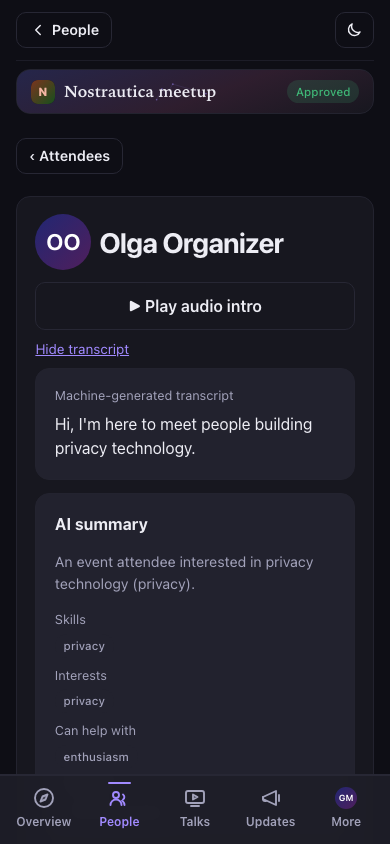
Video and audio intros get an automatic transcript once the organizer's matchmaking service has processed them. On your own or anyone else's page, tap Show transcript under the player to read along or search it, or if you just can't listen right now:
Use whatever language you like. Record your intro and write your profile in the language you're most comfortable in. It doesn't have to match the event's language. The app writes your matches and summaries in the event's language, and if your bio is in a different language it shows everyone a translation with your original one tap away ("show original"). So just be yourself in your own words.
Your own event profile
Once the matchmaking service has processed your intro, open More → My event profile to see exactly what everyone else sees about you, split into two honest halves. "You wrote" covers your about text, skills, looking-for, links, and text intro if you sent one, editable directly (or fixed properly by re-recording your intro). "Generated from your intro" holds the AI-written summary, skills, interests, what you can help with, and what you're looking for, all inferred from what you recorded. Got something wrong in the generated half? Edit any field, hide just that field, or hide the whole AI section and show only what you wrote. There's also a quick "report a problem" note if something is off and you'd rather flag it than fix it yourself. Save, and other attendees see your correction immediately, and their view of you shows a small "Edited by attendee" badge so they know it's not purely automated.
4. People
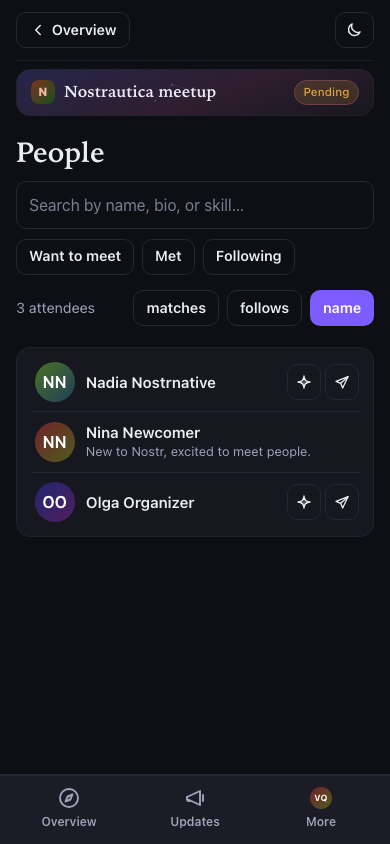
Tap People in the bottom bar to browse who's here. It's one list, and your matches, if you have any, sit at the top of it.
A search field at the top finds people by name, bio, or skill.
If the coordinator has matched you with anyone, they come first, grouped under Strong matches and Good matches headings. Each match shows the person's name, one line of their own bio, and the whole reasoning for why you two should meet, right there on the row. Underneath it, a collapsed Conversation starters section holds the coordinator's suggested opening lines.
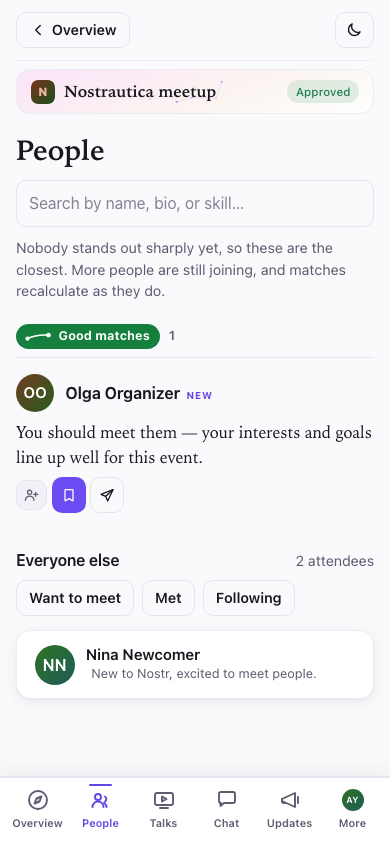
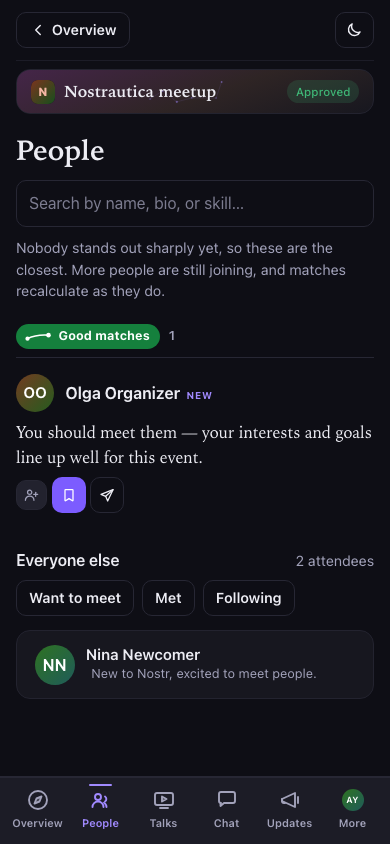
If nobody stands out sharply yet, a line above the list says so: these are your closest people so far, and matches recalculate as more people join.
Below the matches, an Everyone else heading gives the attendee count, then the Want to meet / Met / Following filter buttons, then the full roster as one-line rows: an avatar (their photo, or their initials on a coloured tile), name, and skills. The list streams in as relays answer: people appear as they decrypt (names and photos fill in a moment later), so a big roster on a slow connection never blocks on the slowest relay. Search, or tap a filter, and the sections collapse into one flat list of matching results.
Every person, matched or not, carries the same three quick actions on their row: follow, want to meet, and message. You can use all three without opening their page.
The roster is encrypted to approved attendees, so until you're approved (or in the moment right after, before it syncs) the People screen stays empty and tells you why. That's the privacy model working, not a bug:
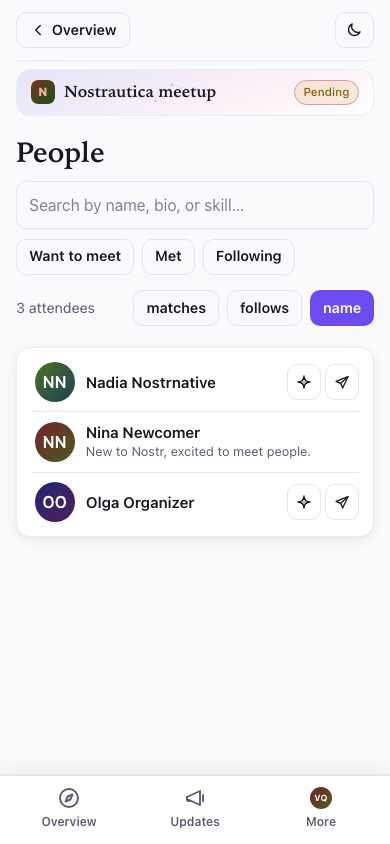
Tap a person's name or row to open their page: their intro video, what they do, what they're looking for, an AI-written summary once the matchmaking has run, and their recent public posts. If you matched with them, the page repeats the reasoning and adds Score details (similarity, complementarity, and overall, as percentages) and an Introduce us button.
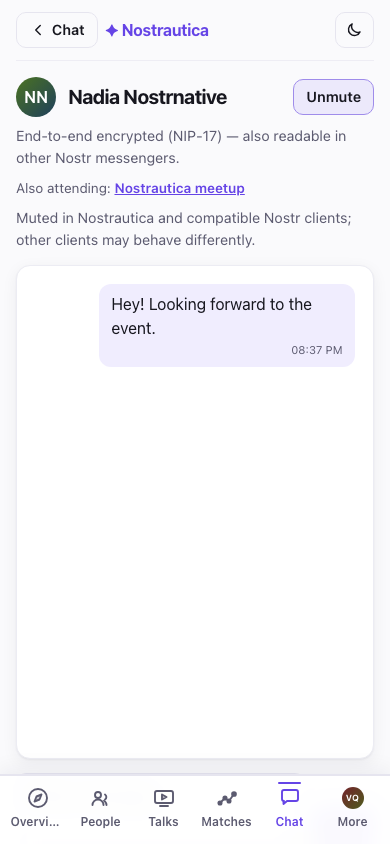
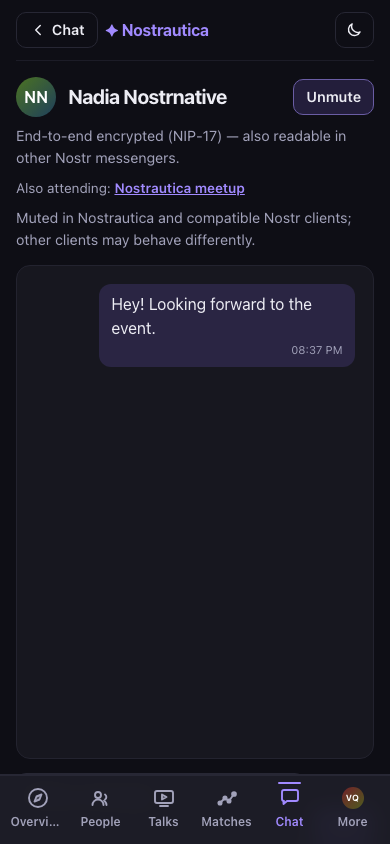
On a person's page you can Follow them, tap Message to start a private chat (see §5), and, privately (nobody else ever sees these), mark Want to meet or Met ✓, and keep a private note ("the drummer with the mesh-network startup"). Reload and it all persists. For a match, Message opens the composer already filled in with the coordinator's suggested opening line, which you can edit or delete before sending. If someone's bothering you, Mute hides them from your People list and messages (it's a standard Nostr mute, so it carries to other Nostr apps too):
At the event, work the list: find your top matches, mention the app told you to. Best icebreaker there is.
Matches only appear once the organizer's coordinator has processed a few people's intros, so if nobody stands out yet, it just means the room is still warming up. Record your own intro first (§3); that's what puts you in everyone else's matches.
4.5 Talks (if the organizer turned them on)
Some events let attendees submit short prerecorded talks instead of meeting in person, or ahead of it. If it's on for your event, a Talks tab appears in the bottom bar. Tap Submit a talk, give it a title and a short description, then choose how to provide the video:
- Record it in the browser (like your intro, §3),
- Upload a file you already have, or
- Paste a URL: an unlisted YouTube link or a direct .mp4 link. This is the way to go for a talk too large to upload; the video stays wherever you host it and only the link is encrypted to the event.
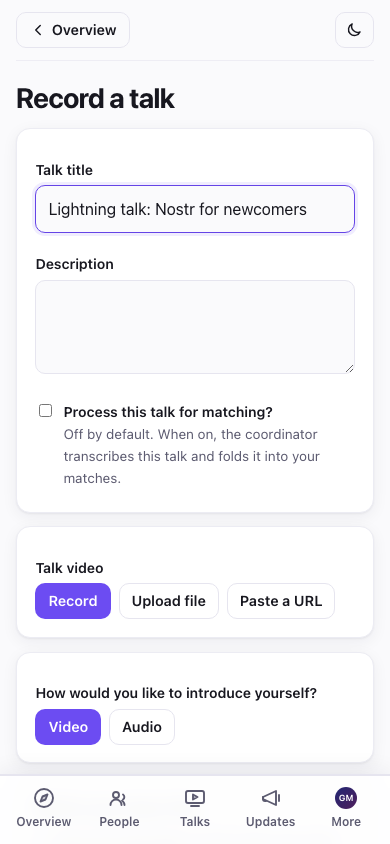
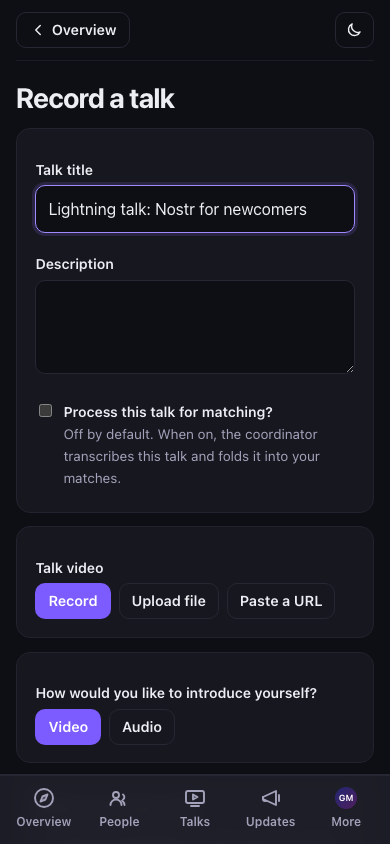
There's also a "Process this talk for matching?" checkbox, off by default: leave it off and your talk is simply published for people to watch; tick it and the coordinator will also transcribe it and use it to sharpen your matches. (Pasted-URL talks are never processed: they're watch-only.) Either way the talk goes to the organizer to publish before it's visible to anyone, so don't expect it to show up instantly.
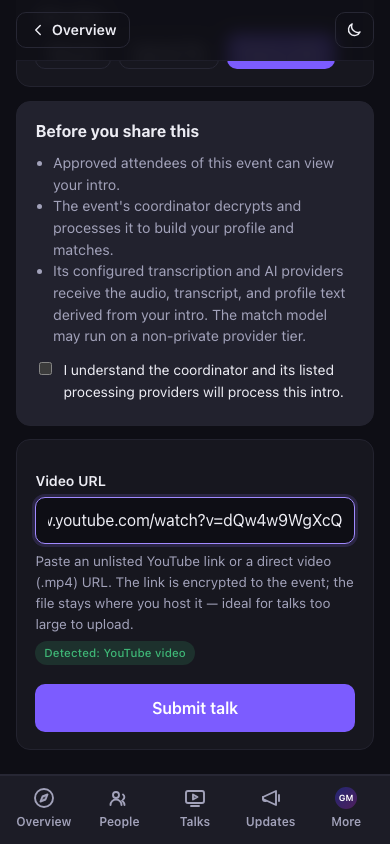
Pasting a link shows a quick confirmation once the app recognizes it:
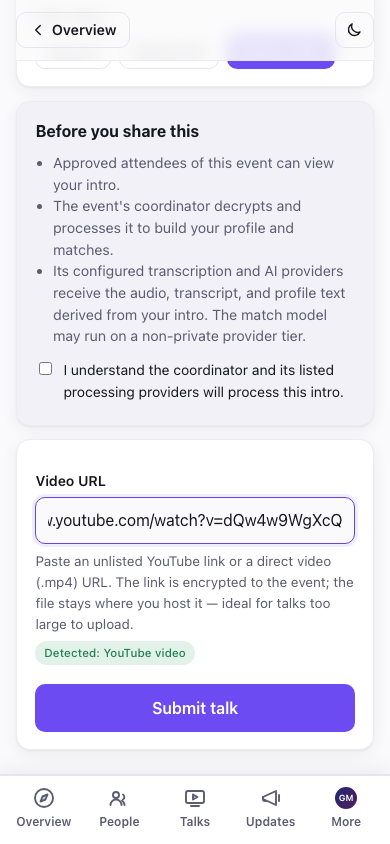
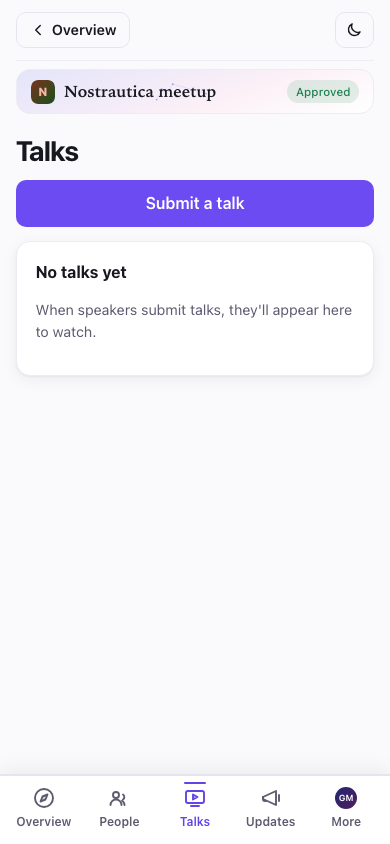
Watching a talk remembers where you left off, so you can close the app and pick it up later, and the player has a speed control (1×/1.5×/2×) for getting through a long talk faster. A transcript is available when the speaker opted their talk into processing.
5. Message people
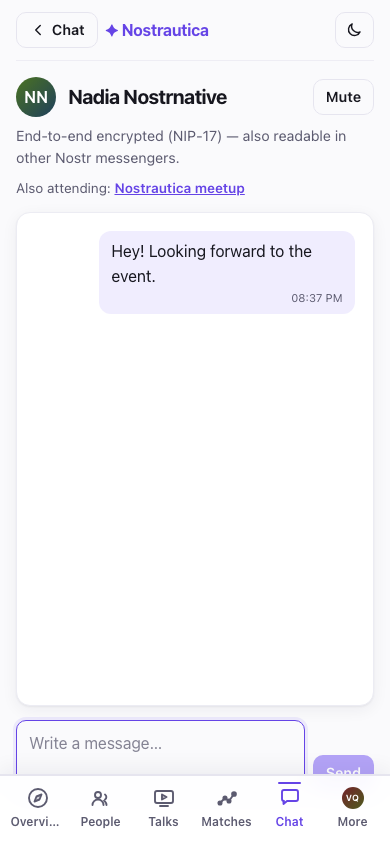
Anyone's page has a Message button. Tap it to open a private, end-to-end encrypted conversation:
Your messages live under More → Messages, which lists every conversation, newest first:
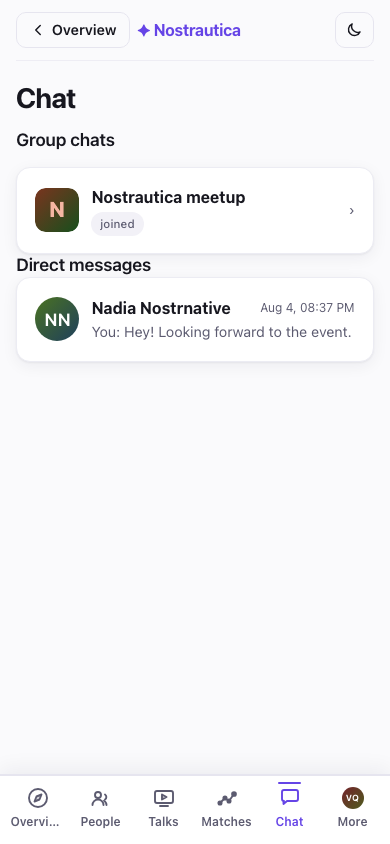
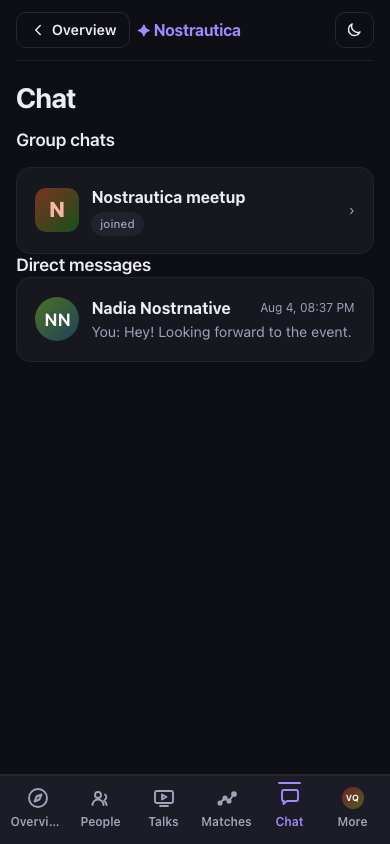
Because these are standard Nostr private messages, they also work with other Nostr messengers: the person can reply from whatever Nostr app they use, and your conversation shows up there too. It isn't locked to this event.
5.5 Group chat (experimental)
If the organizer has turned on Group chat, a Chat tab appears once you're approved: a single encrypted room for the whole event, separate from one-to-one messages. It works like any chat: messages appear in the room as people send them, day separators mark the passage of time, and you can switch between a bubble view and a compact IRC-style log from a toggle above the messages. It's genuinely end-to-end encrypted (a protocol called Marmot/MLS), though the organizer's matchmaking service operates the group (adds and removes people as they're approved or revoked) and can read it. The app tells you this up front, every time you open the tab.
It works across all your devices, automatically. Open the Chat tab on a second phone or another browser and it joins the group on its own, with no code to scan and no pairing step. One catch is inherent to how the underlying protocol works, not a bug: a device only ever sees messages sent after it joined. There's no syncing history onto a freshly added device.
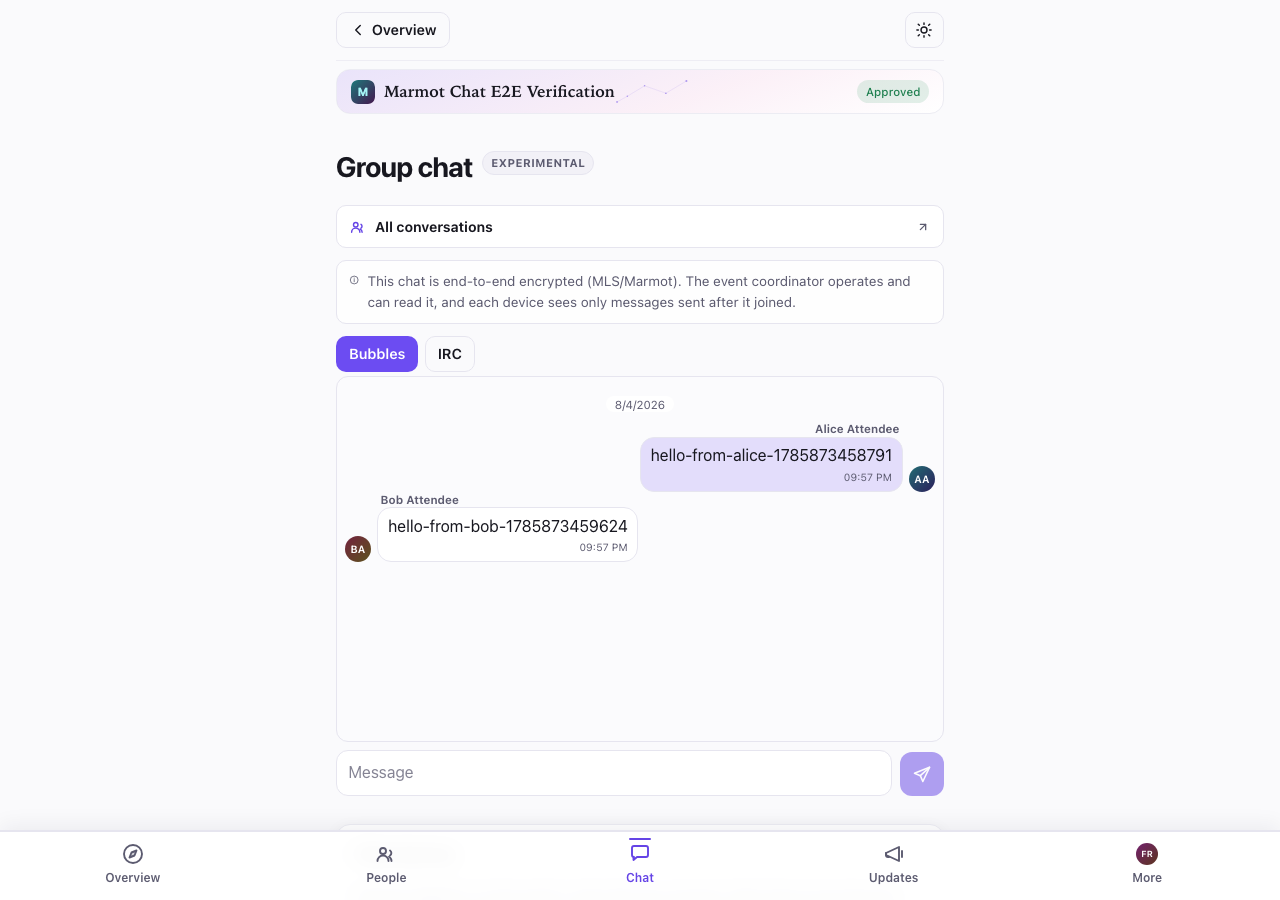
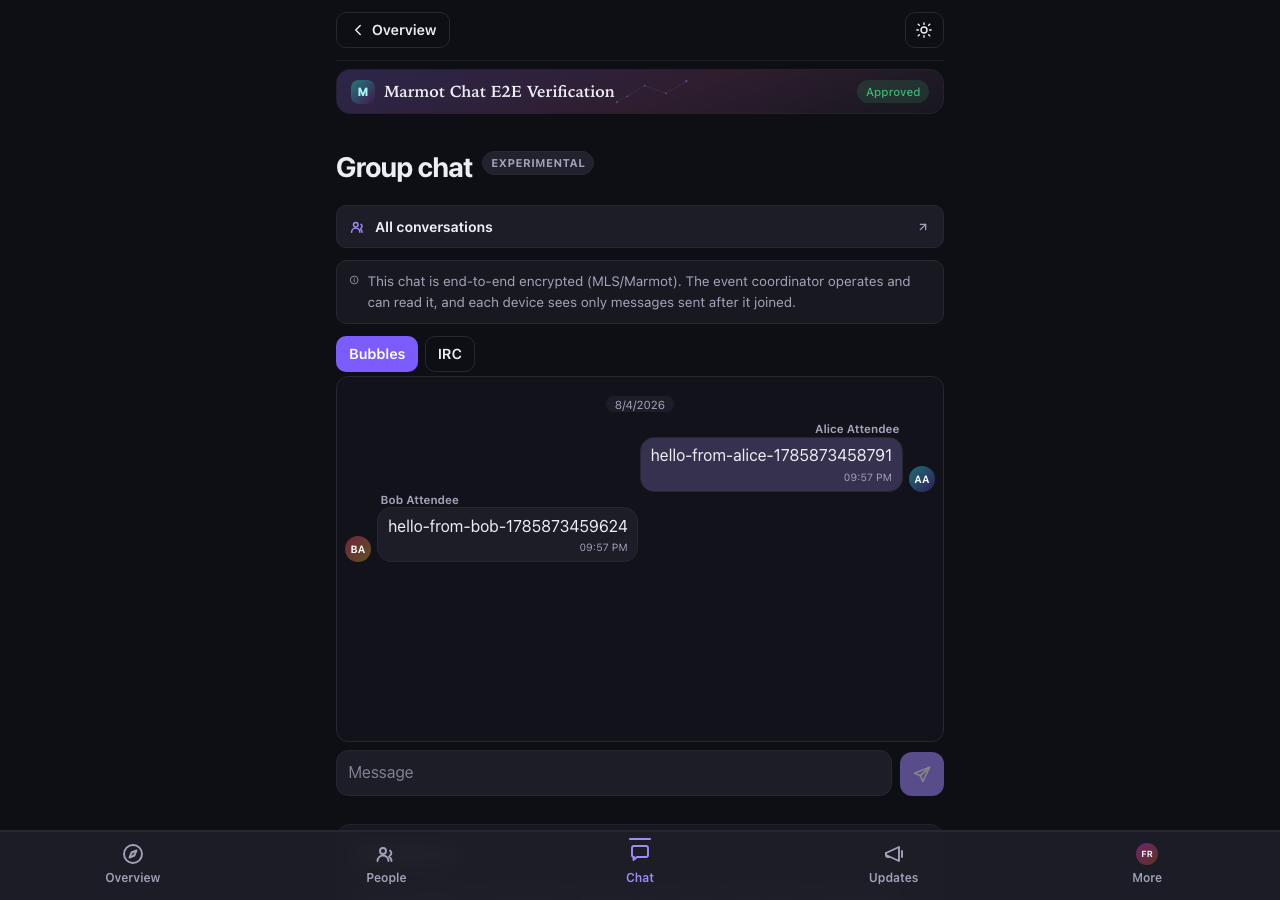
This feature is marked Experimental for a reason: it's new (interop with other Marmot-compatible apps is planned but not something to rely on yet), and joining the group can take a little while, or occasionally need a retry, before messages start flowing. If the tab is stuck on "setting up," give it a few minutes and reopen it.
Also chat from White Noise or another Marmot client. Under Chat devices you can link a White Noise account (or one in another Marmot client, such as Amethyst), so you can read and answer the room from your phone. Enter its npub, or tap Use my account npub if White Noise runs on the same key you signed in with here. For your own npub that's the whole job. For any other npub, White Noise receives an invite called "Nostrautica: confirm White Noise link". Its last message is the code on its own, so you can copy it. Accept it, enter the code in Nostrautica within 30 minutes, and don't share it with anyone. After that the organizer's service invites your White Noise account into the event chat. It shows up in your device list and you remove it like any other device. Like any new device, it only sees messages sent after it joined. White Noise has to be a current version. If the link is refused because the coordinator can't use your White Noise keys, update White Noise, open it once, and try again.
6. Your event report
Any time before, during, or after the event, open Event report from the event menu to see a tidy summary of your event, built entirely from your own want to meet / met marks and notes (§4). It stays live and editable right up to and past the end of the event, so it reflects what actually happened at the venue, not just who you planned to see beforehand.
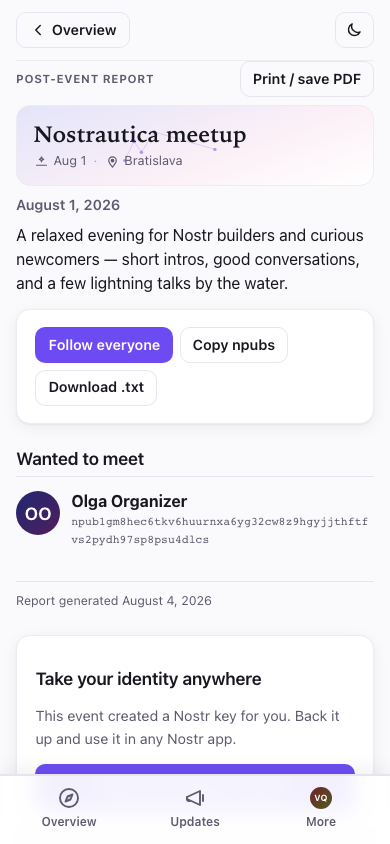
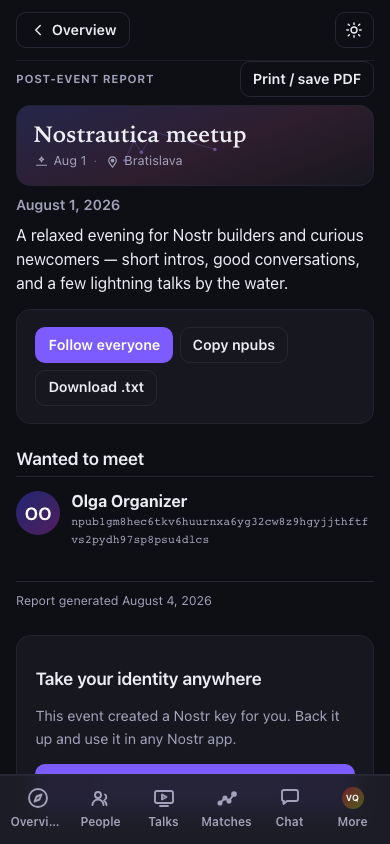
It's organized into People you met, Wanted to meet (people you flagged but didn't connect with), your favorite talks, and your private notes. Three ways to keep the connections once you're home:
- Follow everyone: one tap, with a checklist to uncheck anyone you'd rather not follow first. It's a single append to your own Nostr follow list, done locally. The app never publishes a public "I met these people at this event" list, so who you actually met stays your business.
- Copy npubs / Download .txt: a plain list of names and npubs, for pasting into your own notes app. Also local-only; nothing is published.
- Print / save PDF: a clean, chrome-free printout of the report itself, for people who'd rather keep a paper trail.
If you joined with an app-created identity, the report ends with Take your identity anywhere: one more nudge, and a direct link, to back up your key and see it working in Primal, Damus, Amethyst, or Yakihonne: the same "switch to Nostr" moment described below, right when it's most relevant.
7. Afterwards: your profile is yours to keep
Surprise: the account you just used is a Nostr identity: a login you own, not tied to this app or any company. The More tab leads with an identity card showing your photo, your name, and your public handle (your npub). Tap the npub to copy it:
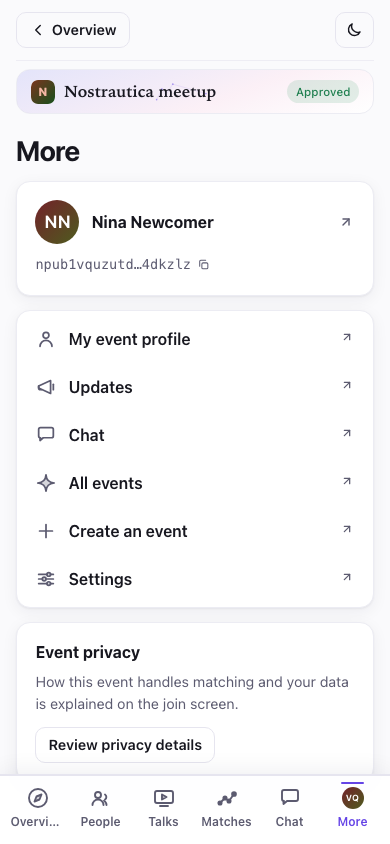
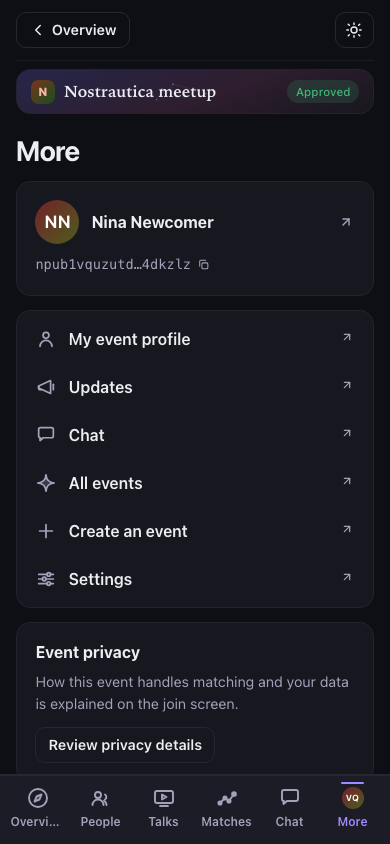
Tap the card to open your full profile, copy your secret key, and jump to other Nostr apps.
The people you followed at the event, your profile, all of it works across a whole ecosystem of social apps (Primal, Damus, Amethyst, Yakihonne…). Copy your key, open one of them, choose "log in with a key", and paste it in. You're already there.
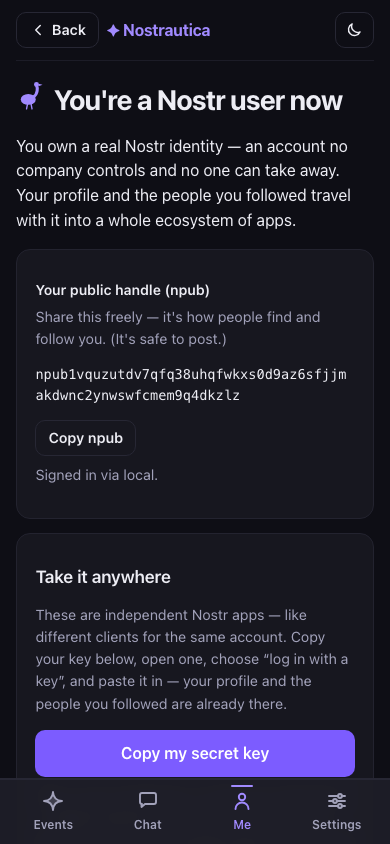
One more thing: More → Settings has a dark mode and a language switch (English / Slovenčina / Čeština / Deutsch / Español), and your choice sticks:
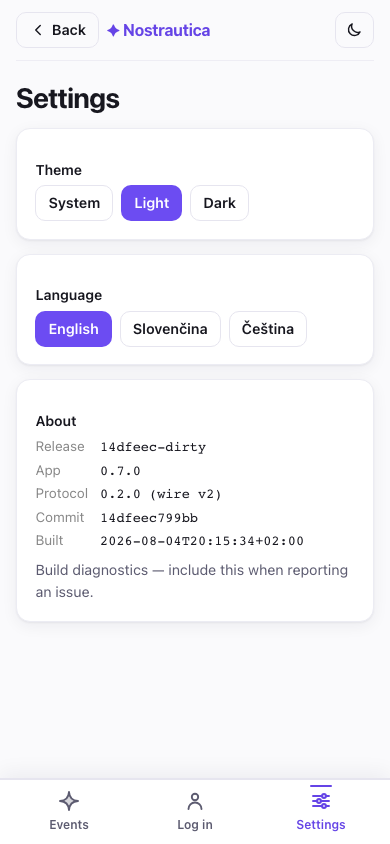
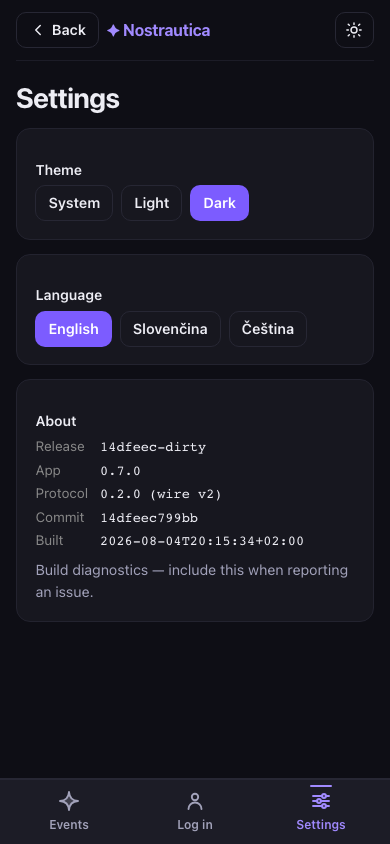
Organizer posts and members-only notes. Under Updates you'll find the organizer's announcements. Some may be members-only, encrypted so only approved attendees can read them (the after-party address, a door code). If you ever see a post with a lock and "join the event to read this", that's a members-only post you don't yet have access to.
If you need to leave
Joined the wrong event, or just changed your mind? Open the event, scroll to the bottom, and tap Leave event. Confirm, and the app sends a withdrawal request: your directory entry, matches, and intro media get cleaned up on the coordinator's (or organizer's) side, and you're out. You can rejoin later; it's treated as a brand-new join request, not a resurrection of the old one.
Privacy, in one paragraph
Your name, photo, and bio are public (that's your profile). Your intro video, the attendee list, and your matches are encrypted so only this event's approved attendees can see them, not the public and not people who weren't let in. Your want-to-meet/met marks and private notes are encrypted so only you can see them. Your messages are end-to-end encrypted between you and the other person. The matching runs on an AI service chosen by the organizer, which reads intros and profiles to write its recommendations. Here's what a non-attendee sees if they open the attendee list. Nothing:
Troubleshooting
I'm still "waiting for approval". Unless you used an invite link, the organizer approves people by hand, so give it a few minutes, or find them at the event. You can safely close the app; check back by reopening the event link.
The invite link opened a browser where I'm not signed in. The installed app is a separate browser from the one that handles links. Copy the link, open Nostrautica from your home screen, and paste it into Add an event from a link on the events screen (§1).
My camera won't start. Your phone or browser is asking for camera permission. Look for the prompt (often in the address bar) and allow it. If there's no prompt, try another browser.
I got a new phone, or cleared my browser. Open the app, tap Already on Nostr? Sign in → Paste a key, and paste the secret key you saved when you joined. Same account, same events. (This is why saving that key matters.) If you organized an event yourself, your full organizer access (approving people, the admin screen, everything) comes back too, automatically, from that one key; you don't need a separate backup of the event itself.
No matches are showing yet. Recording an intro is the biggest single improvement you can make here. After that, matches take a little while to compute and need a few other people to have joined and recorded too. Check back soon.
I don't see the attendee list / videos. You have to be approved first. If you were just approved, reopen the event and give it a moment.
I tapped Leave event but it still shows pending. If you were offline when you tapped it, the request is queued and the app tells you plainly you haven't left yet. It sends as soon as you reconnect.
Why does the app seem to be waiting to update itself? It defers reloading while you're recording, while you have a finished-but-unsent take, a file or talk URL that's still unsent, or a draft intro typed, so an update can't land at a moment that would cost you work. Nothing is written to disk while it waits, so don't leave a finished take sitting for days; submit or discard it and the update lands right after.
Does reusing an old intro link me across events? Reusing a video or audio clip as-is keeps the same encrypted blob, so its public ciphertext hash can tie your presence at two events together. Fresh copy re-encrypts the media with a new key and IV, giving it a new hash and avoiding that specific link, though it can't erase other metadata or copies already published elsewhere.
I want to manage my chat devices. Open Chat → Chat devices to see every device attached to your account for this event, rename the one you're on, or remove any you no longer use (an old phone, a browser you cleared).
Group chat is stuck, or won't send and says I may have been removed. Tap Rejoin this chat (it appears next to the error, or under the "setting up" notice). It asks the organizer's service to add your device back. It usually takes under a minute and keeps the device you're on; like any newly added device, your view of the conversation continues from that point on.